


Adding a call button to a WordPress website may seem like a small detail, but it’s one of the most powerful improvements you can make for conversions—especially if your target audience includes mobile users. Whether you run a local business, provide services, run a travel agency, manage a clinic, or operate an e-commerce store that provides phone support, a visible and simple click-to-call option drastically improves customer engagement. Visitors are usually impatient; if they must search for your phone number or manually type it, you immediately lose potential leads. That’s why learning how to make a call button on WordPress is essential today.
This guide explains everything clearly, without confusing technical steps. It is written to help complete beginners as well as WordPress users who want a professional, clean, and conversion-focused call button. It also gives you a dedicated section on how to make a call button on Avada WordPress theme, because thousands of websites use Avada for business.
The goal is simple:
You will learn how to add a call button on WordPress, how to keep it visible to users, how to make it mobile-friendly, how to integrate it inside Avada header or page builder, and how to use it in a way that generates maximum results.
Why a Call Button Matters So Much for WordPress Websites
Most people browsing your site from mobile prefer instant actions. Whether they are looking for prices, booking information, appointment details, or customer support, making a call is often the quickest way for them to get an answer. A call button removes friction and guides users directly toward contacting you. This one simple feature can increase conversions by a large margin.
When people search how to make a call button on WordPress, they usually belong to one of these categories:
- Owners of local service businesses who depend on phone inquiries
- Restaurants, medical clinics, salons, repair shops, electricians, plumbers
- Travel agents, tour providers, hotels
- Freelancers who want clients to reach them quickly
- Website owners who want a mobile-friendly contact method
- Avada theme users who want the button integrated in their header or global design
A call button helps all of them achieve one common objective: get more customers with fewer clicks.
This is also why searches like how to make a call button on Avada WordPress theme are popular. Avada is a premium theme, and business owners using it want a clean, professional call button without relying on complicated tools.
Understanding What a Call Button Really Is
A call button is simply a clickable button that triggers a phone call on mobile devices. On desktops, it may open a dialer app or VoIP client, but on smartphones it instantly opens the calling screen. It acts as a direct communication link between your business and your customers.
You can place it:
- In the header section
- In the main menu
- Inside page content
- At the bottom as a sticky button
- On landing pages or service pages
- Inside Avada Builder layouts
- As a floating side button
- Or on all pages site-wide
The way you implement it depends on your strategy, not technical difficulty. The good news is that it does not require coding, and you can create it even if you are a new WordPress user.
The Easiest Way to Add a Call Button on WordPress (No Coding, No Complexity)
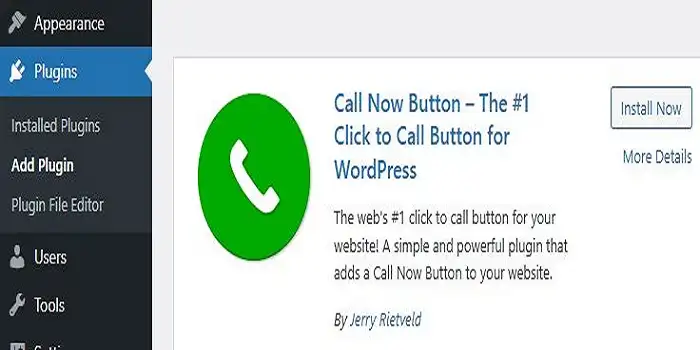
Most beginners prefer a method that is simple, fast, and reliable. The easiest way is to use a plugin designed especially for creating clean, mobile-optimized call buttons. There are many plugins available, but the goal is not to install too many tools.
A lightweight call button plugin offers exactly what most website owners need:
- A clean “Call Now” button
- Mobile visibility options
- Simple customization
- Easy placement
- Compatibility with all themes
Using such a plugin is the quickest solution for anyone searching how to make a call button on WordPress without learning technical steps. Once installed, you simply enter your phone number, choose the button style, and decide where it should appear. This takes less than two minutes and the button becomes visible instantly.
This method is particularly good for people who don’t want to manually design buttons, don’t use editors like Elementor or Avada Builder, and want something that just works.
Adding a Call Button Directly Inside WordPress Pages or Posts
Not everyone wants a site-wide button. Some owners prefer the call button only on landing pages, sales pages, appointment pages, or service-specific pages. In such cases, WordPress’s built-in editor already gives you enough flexibility to create a clean call button.
The idea is simple:
You insert a button block, add your phone number as the link, and then style it using the editor’s design options. This gives you full control over its size, color, alignment, and text.
This method also works well when writing promotional content, such as travel service descriptions, medical service pages, repair service pages, or consultation pages where a call-to-action button must be placed near the main offer.
If you are writing an article explaining booking services or guiding users toward inquiries, placing a call button inside the content enhances user experience. Many content writers and business owners learning how to make a call button on WordPress choose this because it blends naturally with the page layout.
Floating or Sticky Call Buttons for Higher Mobile Conversions
One of the most effective placements for a call button is the floating position on mobile devices. A floating button stays visible on the screen even when users scroll. This ensures users always have the option to call you instantly—resulting in more calls and fewer drop-offs.
Why floating call buttons work so well:
- They stay in the user’s eye view
- Perfect for urgent services (repairs, medical help, car breakdown assistance)
- Ideal for travel booking and real estate pages
- Great for local businesses that rely heavily on phone queries
- Catch attention without interrupting the browsing experience
Most website owners who want strong mobile conversions eventually search for how to make a call button on WordPress to add a sticky button. Several plugins allow this with a single click, and many premium themes also provide sticky elements that can be customized easily.
How to Make a Call Button on Avada WordPress Theme (The Complete Explanation)
Avada is one of the most widely used premium WordPress themes. One of its strongest features is the Avada Builder, which makes creating custom layouts extremely simple. Avada users are often confused because they think adding a call button requires custom coding, but Avada actually makes this easier than most themes.
When people search for how to make a call button on Avada WordPress theme, they usually want:
- A call button inside the header
- A button that appears on every page
- A button that fits their site’s professional design
- A button using Avada’s own Button Element
- A mobile-focused button with clean styling
- A floating call button built inside Avada layouts
Avada is perfect for this because the theme already includes a dedicated Button Element. You simply add your phone number as the call link and customize the design. The Avada Builder also allows placement inside header, footer, or layout sections, giving you more flexibility than standard themes.
Creating a Call Button on Avada Pages Using Avada Builder
When designing a page with Avada Builder, you can add a call button anywhere. You simply insert a button element, choose your design style, and link it to your phone number. Avada allows you to make the button full-width, medium-sized, small-sized, circular, square, or with an icon.
This approach is ideal when you want to add call buttons on:
- Homepages
- Service pages
- About pages
- Contact pages
- Landing pages
- Inquiry pages
- Travel package pages
- Consultation booking pages
Avada gives you control over colors, hover effects, fonts, and alignment, allowing the button to naturally blend with your site identity.
Adding a Call Button in Avada Header (Best for Professional Businesses)
Many business owners prefer a call button in the header because it appears on every page and gives the website a polished, high-trust appearance. With Avada’s Layout Builder, you can create a custom header and place a call button next to the logo, menu, or top bar.
A header call button is extremely powerful for:
- Clinics and hospitals
- Service providers
- Travel agencies
- Real estate businesses
- Restaurants and food delivery services
- Educational institutions
- Repair and emergency service companies
This is one of the most common reasons people search how to make a call button on Avada WordPress theme, because Avada makes header customization easy and visual.
Using Avada Global Layouts to Add a Site-Wide Floating Call Button
Avada’s Global Layout Builder allows you to create a reusable floating element that appears on every page or only on specific device types (like mobile only). This is one of Avada’s biggest advantages, because you can create a professional floating call button without installing additional plugins.
This works exceptionally well when:
- You want a sticky call button that follows users
- You want different buttons for desktop and mobile
- They want full control over design, spacing, and animations
- You want something that perfectly matches your theme style
This method is ideal for business websites that want their contact option visible at all times.
Best Practices for Designing High-Conversion Call Buttons
A call button must be visible, direct, and easy to interact with. While design preferences vary, professionals follow a few universal rules:
- Use contrasting colors so the button stands out
- Add a recognizable label such as “Call Now”, “Book a Call”, or “Contact Us”
- Include a phone icon to make the purpose instantly clear
- Avoid placing too many call buttons on a page
- Keep the phone number accurate and updated
- Place the button at the top or bottom where users expect interaction
- Maintain consistent design across all pages
- Test it on both Android and iOS devices
These practices ensure that your call button doesn’t feel forced or cluttered and instead supports natural user behavior.
Where to Place a Call Button for Best Results
Your placement depends on your business model, but the following positions generally work best:
- Top Right of Header – The most trusted location for businesses.
- Floating Bottom Right on Mobile – Highest conversion rate.
- Homepage Hero Section – Useful for high-intent users.
- Service Pages – Perfect when users are already researching your offer.
- Contact Page – A natural placement for all websites.
- Pricing Pages – Helps users clarify questions instantly.
- Travel, Medical, and Emergency Service Pages – Critical when users need quick help.
Understanding placement is just as important as knowing how to make a call button on WordPress because design choices affect user behavior significantly.
How a Call Button Impacts SEO and User Engagement
Although a call button doesn’t directly influence SEO rankings, it improves behavioral signals:
- Lower bounce rate
- Higher engagement
- More time on site
- Better mobile usability
- More user interactions
- Improved conversion rate
These indirectly help your site perform better. Google values good user experience, and a well-designed call button improves that.
Conclusion
A call button is no longer an optional feature; it’s essential for businesses that rely on phone inquiries. Understanding how to make a call button on WordPress gives you the ability to dramatically improve customer communication with very little effort. Whether you prefer to use a simple plugin, the native WordPress editor, or theme-based tools, the process is simple and extremely effective.
For users of premium themes, especially Avada, learning how to make a call button on Avada WordPress theme provides even more customization and design flexibility. Avada’s Button Element, Header Builder, and Global Layout features make it easy to add a beautiful, mobile-friendly call button anywhere on your site.